Univision Now: Live TV
- 3.6
- Rating
- 5.00M
- Installs
- Free
- Price

 Analysis by App-foxy
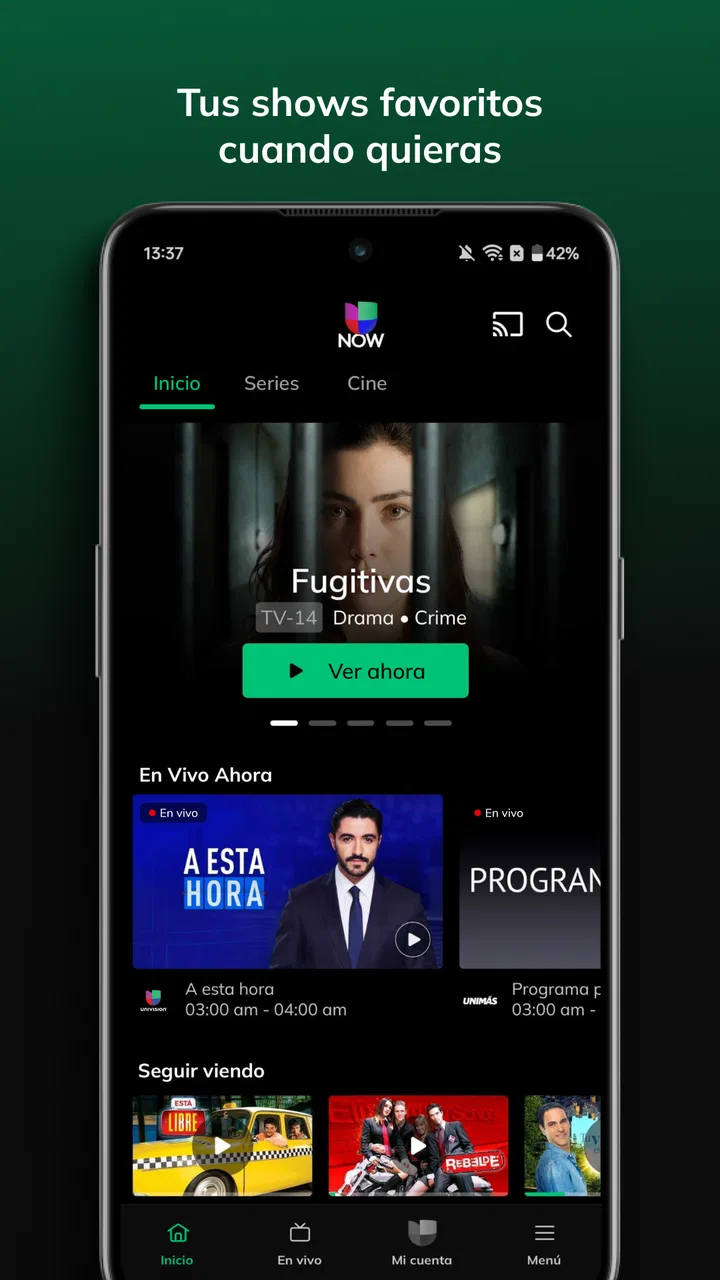
If you are looking for Spanish-language television without signing up for a traditional cable package, Univision Now: Live TV is the kind of app that makes sense to try first. I found its main appeal easy to understand: it brings Univision and UniMás programming to a phone or tablet, with live viewing and on-demand access in the same entertainment app. It is free to install, although some viewing options can involve in-app purchases ranging from $4.99 to $194.99 per item.
My experience with it is best described as focused rather than all-purpose. This is not an attempt to replace every streaming service in your home. It is aimed at viewers who specifically want Univision and UniMás content, especially people who prefer Spanish-language programming and want an alternative to cable. The developer is Univision Communications Inc., and the app has built a sizable audience, with over five million installs and an average rating of 3.6 from around thirty-two thousand ratings.
What to expect before you start watching
The first thing I would tell a new user is to keep expectations tied to the app’s purpose. You are opening a destination for Univision and UniMás, not a huge mixed catalog containing every network, movie studio, and sports channel. That narrower focus is also its strength: if the show or live channel you want belongs to these networks, the app feels much more useful than a general streaming service where you have to search through unrelated material.
You May Also Like

 Google Keep - Notes and lists
Google Keep’s Quiet Growth Shows the Appeal of Simpler Notes
As mobile work gets busier, Google Keep keeps winning a simple contest: capture a thought quickly, find it later, and get on with the day.

 Blood Strike: 2.5 Anniversary
Blood Strike’s Loadouts Turn Every Drop Into a Tactical Gamble
A close look at Blood Strike’s custom loadouts: how fast access to signature weapons reshapes its battle royale rhythm, rewards preparation, and narrows the gap between fights.

 Pandora - Music & Podcasts
Pandora’s Music Is Easy to Start, but Harder to Recover
Pandora’s strength is its low-effort path from a seed to a station. Its weak spot is how much confidence it asks you to place in connection, setup, and quiet recovery.

 8 Ball Pool
 Is Built on Rivalries, Rematches, and Routine
A close look at the rivalries, rematches, shared routines, and unanswered safety questions that turn a quick pool match into a persistent mobile community.

 Samsung Music
’s Quiet Strength Is Playing What You Already Own
Its reach comes less from spectacle than from dependable access to a personal library. That simplicity is both the app’s strongest retention engine and its ceiling.

 AccuWeather: Weather Radar
AccuWeather Review: A Quick, Clear Forecast for Everyday Decisions
For everyday plans, the best forecast is the one you can understand quickly. AccuWeather makes rain timing, radar, and local conditions easy to act on, with a few trade-offs.
More From Our News Desk



The viewing experience combines live television with programs available on demand. That gives you two different ways to use it. You can open the app when a live broadcast matters, or you can return later when your schedule is more important than the broadcast time. I particularly like that distinction for everyday viewing because it avoids forcing every program into the same routine. Live content suits planned events, while on-demand viewing is better for catching up when you have a few spare minutes.
There is also a practical difference between this app and a conventional television package. With cable, the channel is already part of the familiar guide and usually tied to the television service. Here, the app becomes the starting point, so you need to think about the program you want and the way you intend to watch it. That is convenient for mobile viewing, but it can feel less immediate if your habit is simply turning on a television and browsing channels.
The Teen content rating is worth noticing for households. It does not mean every program will suit every child, and parents should still pay attention to what is being watched. I would treat the rating as a reminder to use judgment rather than as a substitute for checking individual programs. For adult viewers and families already familiar with Univision or UniMás, the category will probably feel natural; for someone looking for a children-only service, this is not the right starting point.
Because the app has been available since November 17, 2015, it is not a brand-new experiment. That matters in a small but useful way: the concept is established, and the audience size suggests that many people use it for the same basic purpose. Still, the average rating of 3.6 tells me not to describe it as flawless. The experience can depend on what you expect from a live television app, how often you use on-demand viewing, and whether the programming available matches your habits.
Who will get the most from it
I would recommend giving it a serious look if you already follow Univision or UniMás and want more flexibility than a cable subscription provides. It is also a sensible option for someone who wants Spanish-language entertainment in a dedicated place rather than relying on a general streaming platform that may have only a small selection of Spanish-language programs.
It is less convincing for a viewer who wants one app to cover every television need. If your priority is a broad catalog across many networks, extensive original programming from unrelated services, or a single replacement for all of your subscriptions, this focused selection may feel limiting. The same is true if you rarely watch Univision or UniMás. In that case, the app’s central benefit will not justify adding another service to your routine.
A realistic example is a viewer who normally watches television with family in the evening but sometimes misses a program because of work, travel, or errands. Instead of treating the missed broadcast as the end of the story, that person can check the on-demand side later. Another example is someone who wants live Spanish-language television while away from the living-room set. The app is most valuable in these small, ordinary situations, not because it transforms television, but because it removes a familiar scheduling obstacle.
Getting through setup without unnecessary confusion
For a first-time user, I would begin by installing the app on a device running Android 6.0 or later. Before opening it, I would decide what I actually want to watch first: a live channel or a particular program. That sounds obvious, but it makes the first session much easier. A clear goal helps you recognize whether you have reached the useful part of the app instead of wandering through menus without knowing what success looks like.
Once it opens, take a moment to identify the live and on-demand paths rather than immediately selecting the first item you see. The live route is appropriate when you want to join what is currently airing. The on-demand route is the better choice when you have a specific show in mind or want to watch according to your own schedule. Keeping those two purposes separate is one of the simplest ways to avoid frustration.
The app is free to download, but free installation should not be confused with every viewing possibility being free. The presence of in-app purchases means you should read the screen carefully before confirming anything. I would avoid tapping through a purchase prompt just to discover what it does. First decide whether the content or access option is something you genuinely want, then review the amount shown and the terms presented by the app store.
The purchase range is wide, from $4.99 to $194.99 per item, so this is not a detail I would ignore. The safest habit is to treat every payment screen as a decision point. If you are setting up the app for a family member, especially someone who may tap quickly, it is worth explaining that installing the app and choosing a paid option are separate actions. That small conversation can prevent an unpleasant surprise later.
I also recommend starting with the simplest possible test. Do not begin by searching for an obscure program or trying to recreate your entire television routine. Open the live area and see whether the channel or program you expected is available. If live viewing is not your immediate goal, choose one recognizable on-demand title and check how the app presents it. This gives you a meaningful answer quickly: can you reach the kind of Univision or UniMás content you installed the app to watch?
Your first successful action
For most new users, the first real success should be watching one complete segment or program without treating the app like a cable guide. I would choose a familiar title, open its on-demand entry, and let the app take me from selection to playback. That workflow tests the part that matters most to a casual viewer: whether finding something worthwhile is straightforward enough to repeat later.
If your priority is live television, use a different first test. Open the live viewing area, locate the channel you recognize, and confirm that the current program is the one you expected. Live viewing is a better test for people who want the app as a direct replacement for turning on Univision or UniMás. On-demand viewing is a better test for people who mainly want flexibility.
One useful habit is to remember the route that worked rather than relying on random browsing the next time. If you found a program through on-demand search, repeat that path. If the live channel was easiest to reach from the home screen, use that shortcut. This sounds minor, but it turns the second session into a quick routine instead of another orientation exercise.
I would also avoid judging the entire service from a single unsuccessful search. A live broadcast and an on-demand title are different use cases, and a program you expect to find may be easier to locate from its network section than from a general search area. Try the other viewing route before deciding that the app has nothing useful for you. The key trade-off is that the focused catalog can be efficient when you know what belongs there, but less helpful when you are browsing without a clear target.
Another practical tip is to use the app around your actual viewing habits. If you usually watch a program at a fixed time, start with live viewing. If you regularly miss broadcasts, make on-demand access your main test. Choosing the right mode first is more important than exploring every screen. It lets you judge whether the app solves your problem rather than whether it contains a feature you may never use.
Common points that can trip up new users
The biggest possible misunderstanding is assuming that the word “live” means the app works exactly like a complete cable package. It provides live Univision and UniMás viewing, but the experience remains centered on those networks. If you expect a broad channel lineup, you may think the app is incomplete when it is actually doing what its focused design suggests.
The opposite misunderstanding is assuming that on-demand viewing makes every program available whenever you want. I would approach that area title by title and use the app’s own presentation as the guide. Live and on-demand are related, but they are not interchangeable. A person who installs the app mainly to catch a particular broadcast should check the live path first instead of presuming that the same program will always appear in the on-demand area.
Payment prompts can create another moment of uncertainty. Since the app is free to install but includes paid items, “free” describes the download rather than a promise that every option has no cost. Read each purchase screen carefully, especially if you are comparing this service with a cable package or another streaming subscription. The right question is not simply whether the app costs nothing to download; it is whether the viewing access you want fits your budget.
The rating also gives a useful warning about expectations. An average of 3.6 is respectable but not a guarantee of a smooth experience for everyone. I would not use that number as a reason to reject the app, because the service may suit its intended audience very well. I would use it as a reason to test the exact live or on-demand workflow you care about before building your viewing routine around it.
Device age may matter during installation. The minimum requirement is Android 6.0, so anyone using an older Android device should check compatibility before planning around the app. For a newer phone or tablet, the more important question is practical: does the screen size suit the way you watch, and is mobile viewing genuinely convenient for you? A service can be useful in principle while still being a poor fit for someone who only wants to watch on a large television.
On iOS, I would follow the same first-time approach: identify whether you want live or on-demand viewing, look carefully at any access or payment prompt, and test one familiar program. The exact controls may feel different from Android, but the decision process remains the same. Start with a concrete viewing goal instead of judging the app from its opening screen alone.
What to do after the first successful session
Once you have watched something successfully, the next step is to decide whether the app belongs in your regular rotation. I would give it a few different tests rather than relying on one lucky session: try live viewing when a broadcast matters, use on-demand viewing when your schedule changes, and see whether the network-focused selection consistently contains the programming you care about.
This is where the comparison with usual alternatives becomes clearer. Cable is more familiar for channel surfing and may fit households that want a traditional television setup. A broad streaming service may offer more variety across genres and networks, but it may not be the best place to find Univision and UniMás programming in a focused way. Univision Now: Live TV sits between those habits: it is more targeted than a general streaming catalog and more flexible than relying only on a cable channel at a fixed time.
That middle position is useful, but it also defines the limitation. I would not choose it as my only entertainment app if I wanted a wide mixture of unrelated content. I would choose it when the specific network programming is the reason I am watching. The narrower the need, the more convincing the app becomes. The broader the need, the more likely another service will be a better primary option.
For families, I would establish a simple rule about purchases before handing the device to someone else. For busy viewers, I would make the on-demand area the first place to check after missing a live program. For dedicated live-TV viewers, I would open the app shortly before the program they care about and use it as a direct viewing tool rather than expecting a full cable-style experience.
I also think the app is best evaluated by convenience, not by the number of screens or menus it contains. Ask yourself whether it gets you to Univision or UniMás content faster than your current alternative. If the answer is yes, the focused design is working in your favor. If you spend more time searching, comparing access options, or wondering which viewing mode to use, then a different setup may serve you better.
After testing it, I would keep it installed only if it solves a repeatable problem: watching Spanish-language programming away from cable, catching up when a live schedule does not work, or giving a household an easier route to these two networks. Those are concrete reasons to return. Installing it simply because it is free is less persuasive, particularly when the paid options require careful attention.
My overall opinion is positive but deliberately specific. Univision Now: Live TV is worth trying when Univision and UniMás are the center of your viewing habits, and the path from installation to first useful playback is reasonably clear once you separate live television from on-demand viewing. I appreciate the flexibility and the focused purpose, but I would not recommend it as a universal replacement for every streaming or cable need.
For a first-time user, the best plan is simple: install it on a compatible device, choose one familiar live or on-demand target, read any purchase prompt before proceeding, and judge the app by that real viewing task. If it fits your language and network preferences, it can become a practical part of your entertainment routine. If you want a much wider catalog or a traditional all-channel experience, you will probably be happier with a broader alternative.
FAQs for Univision Now: Live TV
01What is Univision NOW: Live TV, and what can I watch with it?
Univision NOW: Live TV is a streaming service focused on Univision programming, including live Spanish-language television, news, sports, entertainment, novelas, and selected on-demand content. Availability can vary by location, subscription plan, and licensing agreements. Before downloading, check whether the service officially supports your country and review the current channel lineup, since included programs may change over time.
02Do I need a subscription to use Univision NOW: Live TV?
Yes, most of the service’s live television and premium content requires a paid subscription. The app may allow you to browse available shows or view limited promotional content without subscribing, but full access generally depends on an active plan. Pricing, trial offers, billing terms, and cancellation policies can differ, so it is worth checking the latest details in the app store or on Univision’s official website.
03Is Univision NOW: Live TV available on Android and iPhone?
Univision NOW: Live TV is designed for mobile viewing and may be available for compatible Android phones and tablets, as well as iPhone and iPad devices. Compatibility can depend on your operating system version, device model, and app updates. Make sure your device meets the minimum requirements before downloading, and use the official Google Play Store or Apple App Store to avoid unofficial or unsafe copies.
04Can I watch Univision NOW: Live TV outside the United States?
Access is generally restricted by geographic and content-licensing rules, so the service may not work fully outside supported regions. Even when the application can be installed abroad, live channels or on-demand programs may be unavailable. Travelers should also expect location checks and possible limitations. Review Univision’s current regional availability information before subscribing, especially if you frequently move between countries.
05Does Univision NOW: Live TV support multiple devices and offline viewing?
The service may let subscribers use their account on more than one supported device, but simultaneous streams and device limits depend on the current terms of the subscription. It is primarily intended for live and online streaming, so offline downloads may not be available for every program or plan. A stable internet connection is recommended, particularly for high-quality video and uninterrupted live broadcasts.
Pros
- Live access to Univision and UniMás programming on supported devices.
- Includes Spanish-language news
- sports
- novelas
- and entertainment.
- Cloud DVR lets subscribers record select live programs for later viewing.
- Parental controls help manage access to age-restricted content.
- Watching on mobile devices is convenient for travel or viewing away from home.
Cons
- Availability and channel lineup vary by location and subscription plan.
- Some content may be unavailable because of streaming rights restrictions.
- A stable
- fast internet connection is needed for smooth live playback.
- The app may use significant mobile data when streaming over cellular networks.
- Certain features and programs may require an additional paid subscription.

Univision Now: Live TV
Gallery